Take a moment to think about how many online accounts you have. Email, banking, streaming services, social media, online shopping, work tools, cloud storage, the list seems to grow every year. Now ask yourself another question: how many of those accounts are protected by the same password?

If your answer is "more than one," you're far from alone. Millions of people reuse passwords because it's convenient, but that convenience comes with a hidden cost. A single leaked password from one website can become the key that unlocks dozens of your other accounts. Cybercriminals know this, and they use automated tools to test stolen passwords across thousands of popular websites every day.
Creating a different, complex password for every account sounds like the obvious solution, but remembering dozens, or even hundreds, of unique passwords isn't realistic for most people. That's exactly why password managers have become one of the most recommended cybersecurity tools by security professionals around the world.
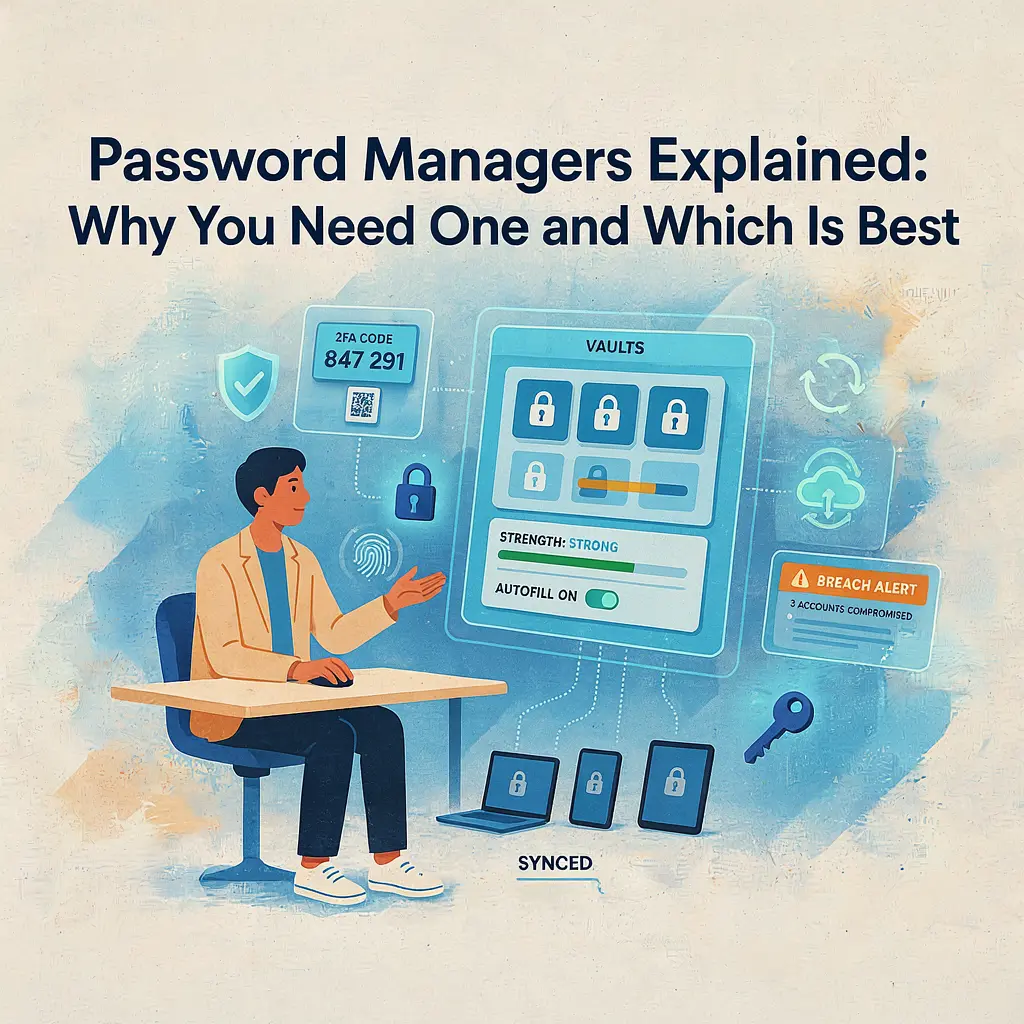
A password manager acts like a secure digital vault, storing all of your login credentials behind one master password while generating incredibly strong passwords you would never have to memorize. Instead of relying on memory or sticky notes stuck to your monitor, you can log in to your favorite websites with a single click while dramatically improving your online security.
Whether you're protecting personal accounts, managing family logins, or securing sensitive work information, a password manager can make your digital life both safer and simpler. It's one of those rare pieces of technology that increases security while making everyday tasks more convenient.
In this guide, you'll learn exactly what a password manager is, how it works, why it's become essential in today's digital world, the features you should look for, and which password managers stand out as the best options for different needs and budgets. By the end, you'll have everything you need to choose the right password manager and take one of the biggest steps toward protecting your online identity.
What Is a Password Manager?
A password manager is a secure application that stores, organizes, and protects your usernames, passwords, and other sensitive information in an encrypted digital vault. Instead of trying to remember dozens of complex passwords, or worse, reusing the same one across multiple websites, you only need to remember a single master password to unlock everything.

Think of it as a highly secure safe for your digital life. Just as you wouldn't leave important documents scattered around your home, a password manager keeps your online credentials locked away in one protected place that only you can access.
How Does a Password Manager Work?
When you create an account with a password manager, you'll choose one strong master password. This is the only password you'll need to memorize because it unlocks your encrypted password vault.

Once you're signed in, the password manager can:
- Save usernames and passwords as you log in to websites.
- Automatically fill in login forms with a single click.
- Generate long, random passwords that are nearly impossible to guess.
- Sync your passwords across your computer, smartphone, and tablet.
- Alert you if one of your saved passwords has been exposed in a known data breach.
Most password managers work through browser extensions, desktop applications, and mobile apps, making it easy to access your accounts wherever you are.
What Is a Password Vault?
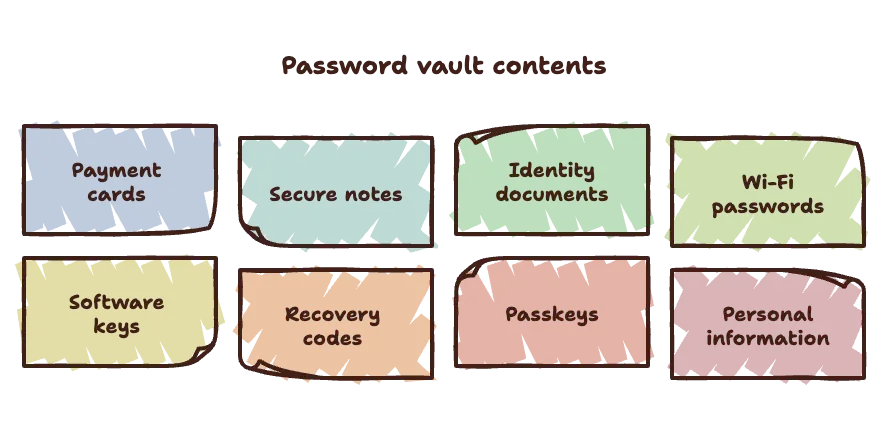
The password vault is the encrypted database where all of your sensitive information is stored. While it's commonly used for passwords, modern password managers can securely store much more, including:
- Credit and debit card information
- Secure notes
- Passport and driver's license details
- Wi-Fi passwords
- Software license keys
- Recovery codes for two-factor authentication
- Passkeys for passwordless logins
- Personal identification information
Everything inside the vault is encrypted before it's stored, meaning your information is transformed into unreadable code that cannot be understood without your master password.
Understanding the Master Password
The master password is the key that unlocks your entire password vault. Unlike the passwords for your individual accounts, this is the one password you should make both long and memorable.
Because most reputable password managers use a "zero-knowledge" security model, even the company providing the service cannot see or recover your master password. That means you're the only person who can unlock your vault, but it also means you should store your recovery information safely in case you ever forget it.
A strong master password is often a passphrase made up of several unrelated words combined with numbers and symbols. For example, a long, unique phrase is generally much stronger, and easier to remember, than a short password filled with random characters.
Encryption Made Simple
Encryption is what makes password managers so secure. Imagine placing a document inside a locked box that only you have the key to open. Even if someone steals the box, they can't read what's inside without that key.
Password managers work the same way. Before your passwords are saved or synced to the cloud, they're encrypted on your device. If someone intercepted the data during transmission or accessed the provider's servers, all they would see is meaningless encrypted text instead of your actual passwords.
This combination of strong encryption, secure storage, and convenient access is what makes password managers one of the most effective tools for protecting your online accounts while eliminating the frustration of remembering countless passwords.
Why Strong Passwords Alone Aren't Enough
Most people have heard the advice countless times: use a strong password with a mix of uppercase and lowercase letters, numbers, and special characters. While that's still good advice, it's only part of the equation. In today's digital world, having a strong password isn't enough if you're using it the wrong way.

The real challenge isn't creating one secure password, it's creating and managing a different secure password for every account you own. That's where many people struggle, and it's exactly what cybercriminals count on.
The Problem With Remembering Dozens of Passwords
The average internet user has anywhere from dozens to well over a hundred online accounts. Between banking apps, streaming platforms, online stores, social media, healthcare portals, work software, and smart home devices, the number continues to grow every year.
Remembering a unique, complex password for every account is nearly impossible without help. As a result, many people fall into habits that make their accounts far easier to compromise, such as:
- Reusing the same password across multiple websites.
- Making only small variations of an existing password.
- Choosing simple passwords that are easy to remember.
- Saving passwords in unsecured notes or spreadsheets.
- Writing passwords on paper where others can find them.
While these shortcuts may seem harmless, they create opportunities for attackers to gain access to far more than a single account.
Why Reusing Passwords Is So Dangerous
Imagine you use the same password for your favorite online store, your email account, and your bank. If the online store experiences a data breach and your login details are exposed, criminals won't stop there.

Instead, they'll use automated software to try that exact username and password combination on hundreds of popular websites. This attack is known as credential stuffing, and it's surprisingly effective because so many people reuse passwords.
In other words, one weak link can compromise your entire digital life.
Data Breaches Happen More Often Than You Think
Even some of the world's biggest companies have experienced security breaches over the years. While businesses invest heavily in cybersecurity, no system is completely immune to attacks.
When a breach occurs, stolen usernames and passwords often end up being sold or shared online. Attackers then use those credentials to target other services, hoping users have recycled the same password elsewhere.
This means your security doesn't depend solely on how well a company protects its systems, it also depends on whether you've used that password anywhere else.
Human Nature Is the Biggest Weakness
Ironically, the greatest vulnerability in cybersecurity is often human behavior rather than technology.

People naturally prioritize convenience. It's easier to remember one familiar password than dozens of unique ones. Unfortunately, hackers understand these habits and design their attacks around predictable human behavior.
Some of the most common password mistakes include:
- Using birthdays or family names.
- Choosing predictable patterns like "Password123."
- Reusing passwords for years without updating them.
- Ignoring security warnings after a known breach.
- Sharing passwords through text messages or email.
These habits make it significantly easier for attackers to gain unauthorized access to accounts.
Strong Passwords Need Strong Management
A truly secure password strategy combines two essential principles:
- Every account should have its own unique password.
- Every password should be long, random, and difficult to guess.
While that sounds ideal, very few people can realistically manage hundreds of unique passwords from memory alone. That's why password managers have become such an important security tool. They eliminate the need to remember every password while ensuring each account is protected by a strong, randomly generated credential.
Instead of relying on memory or risky shortcuts, a password manager lets you enjoy the benefits of strong security without sacrificing convenience. In many ways, it's the missing piece that turns good password habits into truly effective online protection.
The Biggest Benefits of Using a Password Manager
A password manager does far more than remember your passwords. It simplifies your online life while significantly improving your digital security. Whether you're managing ten accounts or hundreds, the right password manager removes many of the everyday frustrations of staying safe online.

Let's take a closer look at the biggest advantages.
Creates Strong, Unique Passwords Automatically
One of the greatest benefits of a password manager is its built-in password generator. Instead of trying to invent a secure password yourself, the software creates long, random combinations of letters, numbers, and symbols that are extremely difficult to crack.
Even better, it generates a different password for every website and app you use.
That means if one account is ever compromised, your other accounts remain protected because they all use completely unique credentials.
You no longer have to settle for passwords that are easy to remember but easy for hackers to guess.
Saves Time Logging Into Websites
Typing usernames and passwords dozens of times every day quickly becomes tedious. Password managers streamline the entire process by automatically filling in your login details when you visit a website or open an app.
Instead of searching through notebooks, resetting forgotten passwords, or copying credentials from another device, you can sign in with just a click or a tap.
Over time, those saved seconds add up, making your daily online routine noticeably faster and more convenient.
Protects Against Phishing Attacks
Phishing websites are designed to trick you into entering your login information on fake versions of legitimate websites. These fraudulent pages often look almost identical to the real thing.
A password manager provides an extra layer of protection because it recognizes the exact web address associated with your saved credentials.
If you're on a fake website with a different domain name, the password manager usually won't autofill your login details. That warning can help you spot a phishing attempt before you accidentally hand your password to cybercriminals.
While no security tool is perfect, this simple safeguard has prevented countless users from falling victim to phishing scams.
Syncs Across All Your Devices
Most people switch between multiple devices throughout the day, a laptop at work, a desktop at home, a smartphone on the go, and perhaps a tablet in the evening.
Modern password managers securely synchronize your encrypted password vault across all of your devices.
That means when you create or update a password on your computer, it's immediately available on your phone and every other connected device.
You never have to email passwords to yourself or wonder which version is the latest.
Securely Stores More Than Passwords
Today's password managers have evolved into secure digital vaults capable of storing much more than login credentials.

Many allow you to safely save:
- Credit and debit card details
- Bank account information
- Secure personal notes
- Passport and driver's license information
- Health insurance cards
- Software license keys
- Wi-Fi passwords
- Cryptocurrency wallet recovery phrases (where appropriate and with additional precautions)
- Passkeys for passwordless authentication
Having all of this information encrypted and organized in one secure location makes it easier to access important documents whenever you need them while reducing the temptation to store sensitive information in less secure places.
Makes Password Updates Much Easier
Security experts recommend changing passwords immediately if they're exposed in a data breach. Without a password manager, updating dozens of accounts can be a frustrating task.
With one, generating and saving a brand-new password takes only seconds.
Many password managers even highlight weak, reused, or compromised passwords inside your vault, making it easy to identify which accounts need attention first.
Helps Your Entire Family Stay Safe
Cybersecurity isn't just an individual concern. Families often share streaming accounts, utility logins, Wi-Fi passwords, and other important information.
Many premium password managers offer family plans that allow secure password sharing without revealing the actual password.
Instead of sending sensitive credentials through text messages or email, family members can access shared accounts safely through the password manager itself.
Reduces the Stress of Managing Online Accounts
Perhaps the biggest benefit is peace of mind.
You no longer have to worry about forgetting passwords, writing them down, or using the same login across multiple websites. Everything is securely stored, easily searchable, and available whenever you need it.
Rather than making online security feel like a burden, a password manager quietly handles the hard work behind the scenes. It encourages better security habits without adding extra complexity to your daily routine, a rare combination that makes it one of the most valuable tools you can install on any device.
How Password Managers Keep Your Information Safe
It's natural to wonder whether storing all of your passwords in one place is actually secure. At first glance, it might seem risky. After all, if every login credential is inside a single vault, doesn't that create one big target?
The answer lies in how modern password managers are designed. Reputable password managers use multiple layers of security that work together to protect your information, even if their own servers were ever compromised.
End-to-End Encryption Protects Your Data
The foundation of every trustworthy password manager is strong encryption.
Before any password leaves your device, it's encrypted into unreadable data using advanced cryptographic algorithms. Once encrypted, the information looks like a random collection of characters that cannot be interpreted without the correct encryption key.
This means that even if someone intercepted your data while it was syncing to the cloud, they wouldn't see your actual passwords. They would only see encrypted information that is practically impossible to decipher using today's computing technology.
Zero-Knowledge Architecture Means Only You Can Access Your Vault
Many leading password managers follow what's known as a zero-knowledge architecture.
In simple terms, this means the company providing the password manager cannot see your stored passwords or your master password.
Your encryption keys are generated on your own device, and only you have the credentials needed to unlock your vault.
Even if someone contacted the company requesting access to your passwords, the provider wouldn't have the ability to reveal them because it never stores them in a readable format.
This privacy-focused approach is one of the biggest reasons password managers are trusted by security professionals worldwide.
Your Data Is Encrypted Before It Syncs
Cloud synchronization often raises concerns, but reputable password managers protect against these risks by encrypting your information before it's uploaded.
Your passwords are encrypted on your device first, then securely transmitted and stored in encrypted form on the provider's servers.
Because the encryption happens locally, your data remains protected throughout the entire process, from your laptop to the cloud and back again.
Two-Factor Authentication Adds Another Layer of Protection

Most password managers support two-factor authentication (2FA), which requires a second verification step in addition to your master password.
Depending on the service, this might involve:
- An authentication app that generates one-time codes.
- A hardware security key.
- Biometric verification.
- A trusted mobile device confirmation.
Even if someone somehow discovered your master password, they would still need this second authentication factor before gaining access to your vault.
For most users, enabling 2FA is one of the simplest ways to dramatically improve account security.
Biometric Login Makes Security More Convenient
Many password managers allow you to unlock your vault using biometric authentication after you've signed in initially.
This can include:
- Fingerprint recognition.
- Facial recognition.
- Windows Hello.
- Apple's Face ID or Touch ID.
- Android biometric authentication.
Biometrics make accessing your vault faster without reducing security because your master password remains the foundation of your account's protection.
What Happens If the Password Manager Is Hacked?
This is one of the most common questions people ask.
The important thing to understand is that reputable password managers are built with the assumption that breaches can happen. That's why they don't rely solely on keeping attackers out, they also ensure stolen data remains useless if attackers ever get in.
Because customer vaults are encrypted before reaching the provider's servers, a successful breach typically gives attackers access only to encrypted data, not readable passwords.
Your vault can only be decrypted using your master password and the encryption keys derived from it. Without those, the stolen information remains extremely difficult to use.
This is why cybersecurity experts often emphasize choosing a password manager with a proven security track record, independent security audits, and transparent encryption practices.
Security Still Depends on Good Habits

Even the best password manager can't protect you if basic security practices are ignored.
To maximize your protection:
- Create a long, unique master password that you don't use anywhere else.
- Enable two-factor authentication.
- Keep your password manager updated.
- Be cautious of phishing attempts asking for your master password.
- Store recovery information in a secure location.
- Regularly review your vault for weak or outdated passwords.
Think of a password manager as a high-security safe. It's incredibly effective, but it works best when you lock it properly and protect the key.
When used correctly, a password manager provides one of the strongest defenses available against password theft, account takeovers, and many of the most common cyber threats people face online today.
Password Managers vs Browser Password Saving
Modern web browsers like Google Chrome, Microsoft Edge, Mozilla Firefox, and Safari all offer to save your passwords. For many people, this built-in feature seems convenient enough, raising an important question:

If my browser already saves passwords, do I really need a dedicated password manager?
The short answer is yes.
While browser password managers have improved significantly over the years, they are primarily designed for convenience. Dedicated password managers are built with security as their primary focus and offer far more advanced features to protect your digital life.
Let's compare them side by side.
Feature | Browser Password Saving | Dedicated Password Manager |
Password Generation | Basic password generation | Advanced customizable password generator |
Password Strength Monitoring | Limited | Comprehensive security reports and password health checks |
Cross-Platform Compatibility | Usually tied to one browser ecosystem | Works across browsers, operating systems, and mobile devices |
Encrypted Password Vault | Basic protection | End-to-end encrypted vault with advanced security architecture |
Secure Password Sharing | Rarely available | Secure sharing with family members or coworkers |
Breach Monitoring | Limited or unavailable | Alerts you when saved credentials appear in known data breaches |
Emergency Access | Generally unavailable | Trusted emergency contacts can access your vault if needed |
Secure Storage for Documents | Minimal | Stores notes, payment cards, IDs, passkeys, and more |
Business Features | None | Team management, permissions, and auditing tools |
Overall Security | Good | Excellent |
Browser Password Saving: The Pros
Using your browser to save passwords isn't necessarily a bad idea. In fact, it's much better than reusing weak passwords or writing them down on sticky notes.
Some advantages include:
- Built directly into your browser.
- Completely free to use.
- Automatically fills in login forms.
- Easy to set up.
- Syncs across devices if you're signed into your browser account.
For casual internet users with only a handful of accounts, browser password storage may provide a reasonable starting point.
Browser Password Saving: The Limitations
The biggest drawback is that browser password managers are designed to work mainly within their own ecosystems.

For example:
- Chrome works best with Google services.
- Safari focuses on Apple devices.
- Edge integrates most closely with Microsoft accounts.
If you regularly switch browsers or use different operating systems, your passwords may not be as accessible or synchronized as you'd like.
Browser password managers also tend to lack advanced security tools such as:
- Password health audits.
- Secure password sharing.
- Detailed breach monitoring.
- Emergency account recovery options.
- Business management features.
- Advanced encryption controls.
Dedicated Password Managers: The Advantages
Dedicated password managers are built specifically for protecting sensitive information, and it shows.
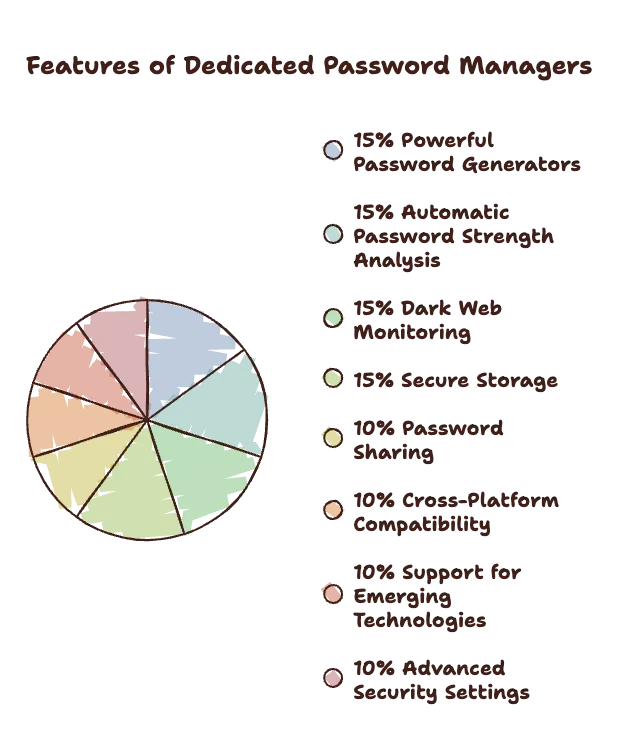
In addition to storing passwords securely, they often include:
- Powerful password generators.
- Automatic password strength analysis.
- Dark web monitoring for leaked credentials.
- Secure storage for payment cards and documents.
- Password sharing with trusted people.
- Cross-platform compatibility.
- Support for passkeys and emerging authentication technologies.
- Advanced security settings for businesses and families.
Because security is their core purpose, these applications typically receive frequent security updates and independent audits.
Which Option Is Right for You?
If you only use one browser on one device and have relatively simple needs, your browser's built-in password manager can offer a basic level of protection that is certainly better than poor password habits.
However, if you:
- Have dozens of online accounts.
- Use multiple computers or mobile devices.
- Want stronger security.
- Store sensitive personal or financial information.
- Need to share passwords safely.
- Want alerts about compromised passwords.
- Prefer long-term flexibility regardless of browser or operating system.
Then a dedicated password manager is the better investment.
The Bottom Line
Browser password saving is convenient, but it's only one piece of the cybersecurity puzzle. Dedicated password managers provide a much more complete solution, combining convenience with advanced security features designed to protect your accounts against today's most common online threats.
As cyberattacks become increasingly sophisticated, the extra protection offered by a dedicated password manager can make the difference between a minor inconvenience and a major security incident.
Types of Password Managers
Not all password managers work the same way. While they all share the same goal, helping you create, store, and manage secure passwords, the way they store your information and the features they offer can vary significantly.
Understanding the different types of password managers will help you choose the one that best fits your lifestyle, security needs, and budget.
Cloud-Based Password Managers
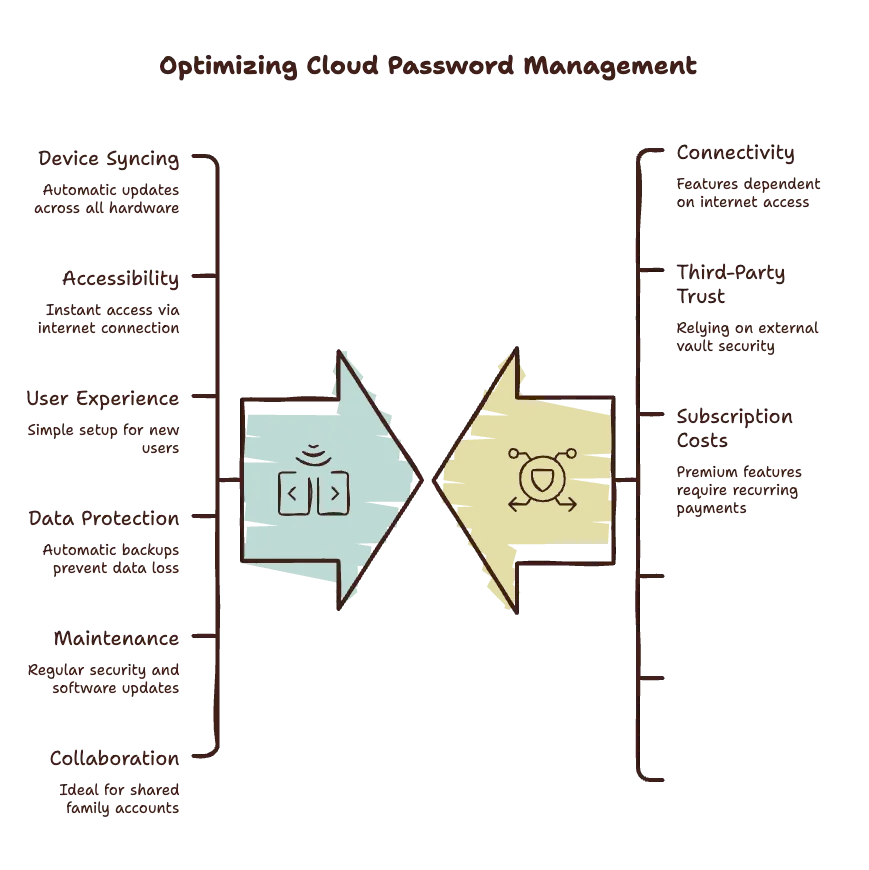
Cloud-based password managers are the most popular option for everyday users. Your encrypted password vault is securely stored in the cloud, allowing it to synchronize automatically across all of your devices.
Whether you log in from your laptop, smartphone, tablet, or another computer, your passwords are always available once you've signed in.
This convenience has made cloud-based password managers the preferred choice for millions of people who regularly switch between devices.
Advantages
- Automatic syncing across multiple devices.
- Easy access from anywhere with an internet connection.
- Simple setup for beginners.
- Automatic backups reduce the risk of data loss.
- Frequent software updates and security improvements.
- Ideal for families and shared accounts.
Potential Drawbacks
- Internet access may be required for some features, depending on the provider.
- You're trusting a third-party company to securely store your encrypted vault.
- Premium features often require a subscription.
For most individuals, cloud-based password managers offer the best balance between convenience and security.
Local Password Managers
Local password managers store your encrypted vault directly on your own device instead of on remote servers.
Some users prefer this approach because they maintain complete control over where their password database is stored. Since your information doesn't automatically sync through the cloud, there's less reliance on third-party infrastructure.
However, managing backups and synchronization becomes your responsibility.
Advantages
- Full control over your password database.
- No dependence on cloud storage providers.
- Can often be used completely offline.
- Appealing to users with advanced privacy requirements.
Potential Drawbacks
- Manual backups are essential.
- Device failure could result in data loss if backups aren't maintained.
- Syncing across multiple devices requires additional setup.
- Less convenient for people who frequently switch devices.
Local password managers are often favored by privacy enthusiasts, IT professionals, and users who prefer managing their own security infrastructure.
Enterprise Password Managers
Businesses face different security challenges than individual users. Employees need access to shared accounts, administrators must manage permissions, and organizations need visibility into password security across entire teams.
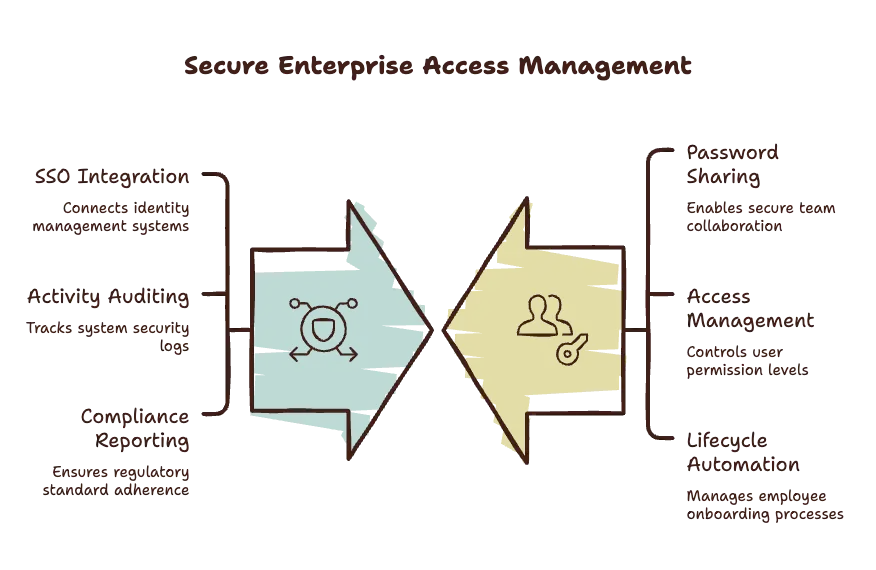
Enterprise password managers are designed specifically for these environments.
Rather than simply storing passwords, they provide centralized management tools that help organizations protect sensitive business information while maintaining employee productivity.
Common enterprise features include:
- Secure password sharing between teams.
- User access controls and permission management.
- Single Sign-On (SSO) integration.
- Activity logs and security auditing.
- Compliance reporting.
- Automated employee onboarding and offboarding.
- Administrative dashboards.
- Integration with identity management systems.
These tools reduce the risk of weak passwords, unauthorized access, and security incidents within organizations of all sizes.
Browser-Based Password Managers
Many web browsers include their own built-in password management capabilities. While these tools have improved over the years, they generally offer fewer features than dedicated password managers.
They focus primarily on convenience by saving login credentials and automatically filling them in when you revisit websites.
For users with simple needs, browser-based solutions may be sufficient. However, they often lack advanced features such as secure password sharing, comprehensive password health reports, encrypted document storage, and cross-platform flexibility.
Mobile-First Password Managers
Some password managers are designed with smartphones and tablets as the primary experience.
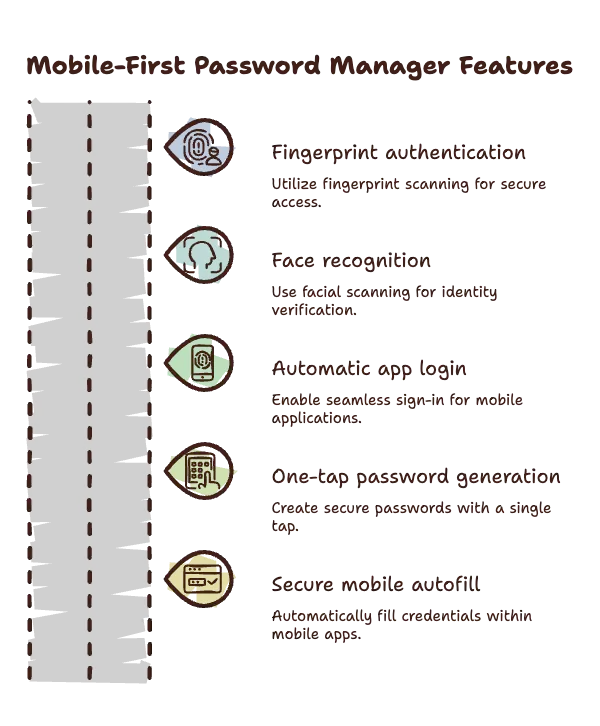
These apps make full use of mobile features like:
- Fingerprint authentication.
- Face recognition.
- Automatic app login.
- One-tap password generation.
- Secure mobile autofill.
As more people rely on their phones for banking, shopping, and communication, mobile-friendly password managers have become increasingly important.
Which Type Is Best?
For most people, a cloud-based password manager offers the ideal combination of security, convenience, and accessibility. It allows you to securely access your passwords across all of your devices while handling backups and synchronization automatically.
If privacy and complete control are your top priorities, a local password manager may be a better fit, provided you're comfortable managing backups yourself.
Businesses and organizations should consider enterprise password managers, which provide the additional tools needed to manage teams, enforce security policies, and protect company data.
Ultimately, the best password manager isn't simply the one with the longest feature list, it's the one you'll use consistently. A secure system that fits naturally into your daily routine is far more valuable than a powerful solution that's too complicated to maintain.
Features You Should Look For Before Choosing One
With dozens of password managers available, choosing the right one can feel overwhelming. While most offer the basic ability to save and autofill passwords, the best password managers go much further by providing features that improve both security and convenience.

Instead of focusing only on price or popularity, look for a password manager that includes the following essential features.
Strong Encryption
Encryption is the foundation of any password manager. Reputable providers use advanced encryption standards to ensure your passwords remain unreadable to anyone without your master password.
While you don't need to understand the technical details, it's important to choose a password manager that clearly explains its security practices and regularly undergoes independent security audits.
A provider that is transparent about how it protects your data is generally a better choice than one that offers few technical details.
Unlimited Password Storage
Your number of online accounts will likely continue growing over time. Choosing a password manager with unlimited password storage means you won't have to worry about hitting account limits as your digital life expands.
Many free plans impose restrictions, while premium subscriptions often remove these limits entirely.
Built-In Password Generator
Creating strong passwords manually is both difficult and unnecessary.
A quality password manager should include a password generator capable of producing long, random passwords with customizable settings for length, symbols, numbers, and character types.
This makes it easy to create unique passwords for every new account in just a few seconds.
Automatic Autofill
One of the biggest time-saving features is autofill.
Rather than typing usernames and passwords every time you sign in, the password manager detects the website and securely fills in your credentials automatically.
The best password managers perform this quickly while helping you avoid phishing websites by only filling passwords on legitimate domains.
Password Health Reports
Over time, it's easy to accumulate weak, reused, or outdated passwords without realizing it.
Many password managers regularly scan your vault and generate security reports highlighting:
- Weak passwords.
- Reused passwords.
- Old passwords that should be updated.
- Passwords exposed in known data breaches.
These reports make it much easier to strengthen your overall security.
Breach Monitoring
Some premium password managers continuously monitor publicly known data breaches.
If one of your saved email addresses or passwords appears in a newly discovered breach, you'll receive a notification encouraging you to change the affected password immediately.
Early warnings like these can significantly reduce the risk of account takeovers.
Secure Password Sharing
Sharing passwords through text messages, email, or messaging apps is risky.
Instead, many password managers allow you to securely share passwords with trusted family members, coworkers, or friends without revealing the actual password itself.
If the password changes later, everyone with authorized access automatically receives the updated version.
This feature is especially useful for shared streaming services, household accounts, and business logins.
Emergency Access
Unexpected situations can happen to anyone.
Many password managers allow you to designate trusted emergency contacts who can request access to your vault if you're ever unable to access it yourself.
Most systems include waiting periods and approval safeguards to prevent unauthorized access while ensuring loved ones can retrieve important information when necessary.
Passkey Support
The future of online authentication is gradually moving beyond traditional passwords.
Many websites now support passkeys, a newer sign-in method that uses cryptographic authentication instead of passwords.
Choosing a password manager with built-in passkey support helps future-proof your security while making passwordless logins easier to manage.
Multi-Device Syncing
Most people use several devices every day.
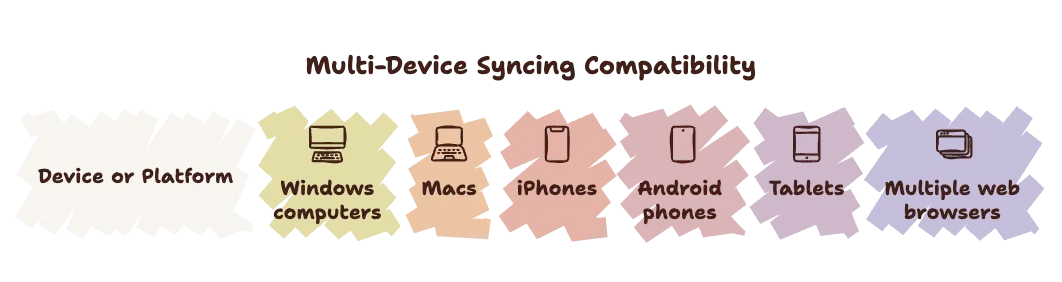
Your password manager should seamlessly synchronize your encrypted vault across:
- Windows computers.
- Macs.
- iPhones.
- Android phones.
- Tablets.
- Multiple web browsers.
This ensures your passwords are always available wherever you need them.
Family Plans
If several people in your household struggle with password management, a family plan can be an excellent investment.
These plans typically provide:
- Individual private vaults for each family member.
- Shared folders for common accounts.
- Secure password sharing.
- Centralized billing.
- Easy account recovery options.
Family plans help everyone build stronger security habits without sacrificing convenience.
Ease of Use Matters
Even the most secure password manager won't help if it's frustrating to use.
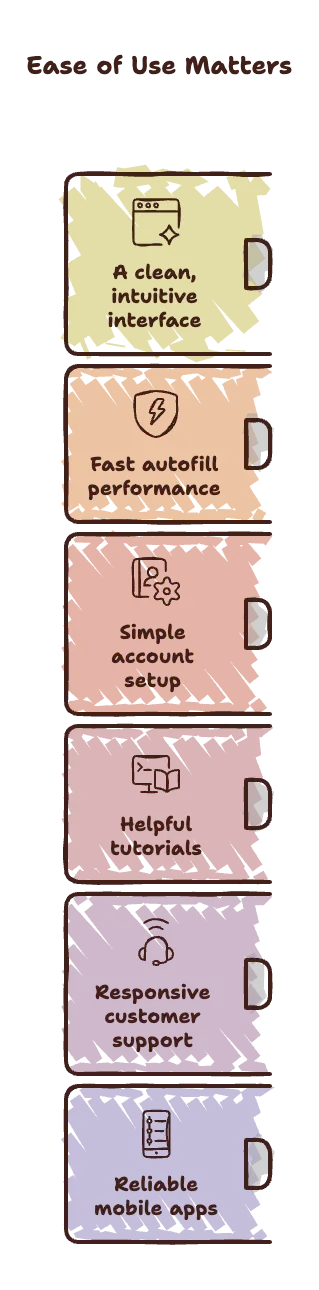
Look for software with:
- A clean, intuitive interface.
- Fast autofill performance.
- Simple account setup.
- Helpful tutorials.
- Responsive customer support.
- Reliable mobile apps.
The easier it is to use, the more likely you'll rely on it consistently.
Focus on Long-Term Value
Choosing a password manager isn't just about solving today's password problems, it's about protecting your digital identity for years to come.
The best password manager is one that combines strong security, modern features, regular updates, and an experience you'll actually enjoy using every day. By prioritizing these features, you'll be far more likely to choose a solution that keeps your online accounts safe while making your digital life simpler and more secure.
The Best Password Managers Compared
With so many password managers on the market, finding the right one can be challenging. The good news is that there isn't a single "best" option for everyone. The ideal choice depends on your budget, the devices you use, and the features that matter most to you.

Below are some of the most trusted password managers available today, along with their strengths, potential drawbacks, and who they're best suited for.
1. 1Password – Best Overall
If you're looking for an excellent balance of security, ease of use, and premium features, 1Password is hard to beat. It's widely praised for its polished interface, strong encryption, and thoughtful features that make password management simple for beginners while still offering advanced capabilities for experienced users.
Best For
People who want an all-around premium password manager that works seamlessly across multiple devices.
Pros
- Excellent user interface.
- Strong security architecture.
- Supports passkeys.
- Secure password sharing.
- Travel Mode for temporarily hiding sensitive vaults.
- Available on all major operating systems.
Cons
- No permanent free plan.
- Slightly more expensive than some competitors.
2. Bitwarden – Best Free Password Manager
For users who want outstanding security without paying a monthly subscription, Bitwarden is one of the strongest options available.
Its free plan includes features that many competitors reserve for paid users, making it one of the best values in the password manager market. It's also open source, meaning its code can be independently reviewed by the security community.
Best For
Students, budget-conscious users, and anyone looking for a reliable free solution.
Pros
- Excellent free plan.
- Affordable premium upgrade.
- Open-source software.
- Strong encryption.
- Unlimited passwords on the free plan.
- Supports passkeys.
Cons
- Interface is more functional than polished.
- Some premium features require a subscription.
3. Dashlane – Best Premium Features
Dashlane combines password management with several advanced security tools, making it attractive for users who want an all-in-one cybersecurity solution.
In addition to storing passwords, Dashlane offers features like dark web monitoring and integrated VPN services on certain plans.
Best For
Users who want additional security tools beyond password management.
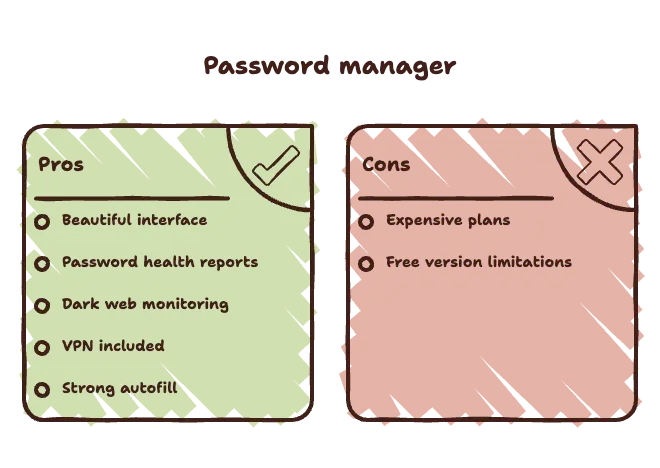
Pros
- Beautiful interface.
- Excellent password health reports.
- Dark web monitoring.
- VPN included with select plans.
- Strong autofill capabilities.
Cons
- Premium plans can be expensive.
- Free version has limitations.
4. NordPass – Best for Beginners
Created by the team behind NordVPN, NordPass focuses on simplicity without sacrificing security.
Its clean interface and straightforward setup process make it an excellent choice for first-time password manager users.
Best For
People who have never used a password manager before.
Pros
- Beginner-friendly design.
- Strong encryption.
- Fast syncing across devices.
- Passkey support.
- Secure password sharing.
Cons
- Free version limits simultaneous device usage.
- Some advanced features require Premium.
5. Keeper – Best for Families and Businesses
Keeper has built a strong reputation among businesses thanks to its powerful administrative tools, while also offering excellent options for families.
Its security features make it particularly appealing for users managing sensitive personal or business information.
Best For
Families, professionals, and organizations that need advanced account management.

Pros
- Excellent security features.
- Strong business management tools.
- Secure file storage.
- Family sharing options.
- Breach monitoring.
Cons
- Some features are available as paid add-ons.
- Pricing can become expensive depending on the plan.
6. Proton Pass – Best for Privacy
Developed by the creators of Proton Mail, Proton Pass places privacy at the center of its design.
For users who value transparency and privacy-focused services, it offers a compelling alternative to more mainstream password managers.
Best For
Privacy-conscious users who already use Proton's ecosystem.
Pros
- Strong privacy protections.
- End-to-end encryption.
- Modern interface.
- Passkey support.
- Generous free plan.
Cons
- Smaller feature set than some long-established competitors.
- Business features are still expanding.
Quick Comparison
Password Manager | Best For | Free Plan | Passkey Support | Family Plans |
1Password | Overall experience | No | Yes | Yes |
Bitwarden | Best free option | Yes | Yes | Yes |
Dashlane | Premium security features | Limited | Yes | Yes |
NordPass | Beginners | Yes (limited) | Yes | Yes |
Keeper | Families & businesses | Limited | Yes | Yes |
Proton Pass | Privacy | Yes | Yes | Yes |
Which One Should You Choose?
If you're still unsure, here are some simple recommendations:
- Choose 1Password if you want the best overall balance of security, usability, and premium features.
- Choose Bitwarden if you want the best free password manager or exceptional value for money.
- Choose Dashlane if you want extra security tools like dark web monitoring and a VPN.
- Choose NordPass if you're completely new to password managers and want something easy to learn.
- Choose Keeper if you need advanced family sharing or business security features.
- Choose Proton Pass if privacy and transparency are your highest priorities.
Our Overall Recommendation
For most people, 1Password offers the best overall experience thanks to its combination of excellent security, intuitive design, reliable performance, and premium features.
However, if you're looking for a completely free solution, Bitwarden is difficult to beat. It delivers outstanding security and functionality without requiring a subscription, making it an excellent starting point for anyone ready to improve their online security.
Free vs Paid Password Managers
One of the first decisions you'll face when choosing a password manager is whether to use a free plan or pay for a premium subscription. The good news is that even free password managers offer a significant improvement over weak or reused passwords.

However, paid plans often include additional features that can make managing your digital life even safer and more convenient.
So, is a free password manager enough, or is it worth paying for extra features? Let's break it down.
What Free Password Managers Usually Include
Many reputable password managers offer generous free plans that provide the essential tools needed to improve your online security.
Common features often include:
- Unlimited password storage.
- Secure password generation.
- Password autofill.
- Basic password vault.
- Encryption for stored credentials.
- Access on one or more devices, depending on the provider.
- Basic passkey support.
For many individuals, especially those just getting started, these features are more than enough to replace risky habits like password reuse or storing passwords in unsecured documents.
The Limitations of Free Plans
While free plans are excellent for basic password management, they often come with restrictions designed to encourage upgrades.
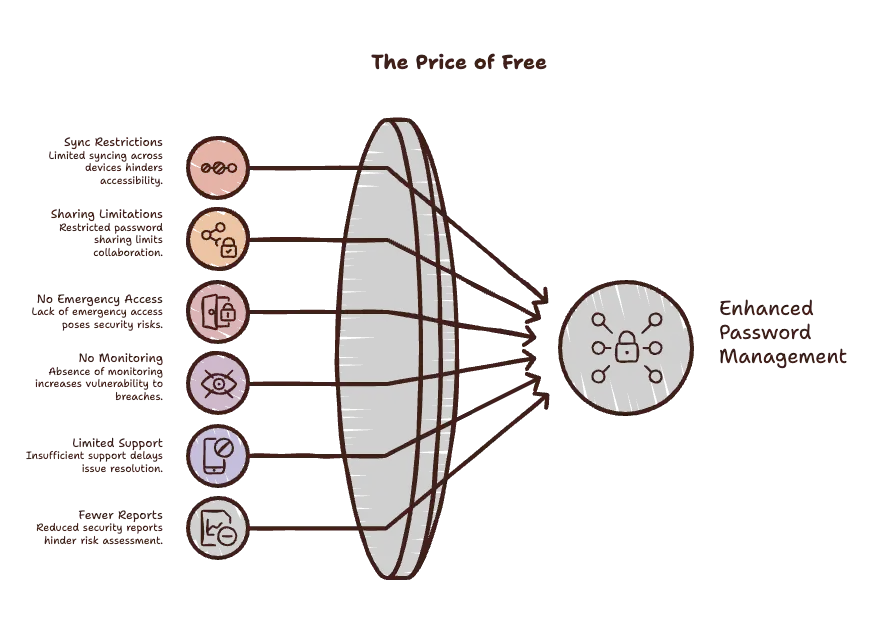
Depending on the provider, you may encounter limitations such as:
- Restricted syncing across multiple devices.
- Limited password sharing.
- No emergency access feature.
- No dark web or breach monitoring.
- Limited customer support.
- Fewer security reports.
- Smaller storage allowances for documents and attachments.
These limitations don't necessarily make a free password manager unsafe, they simply reduce convenience and access to advanced features.
What Paid Password Managers Offer
Premium subscriptions typically build on the core functionality by adding tools designed for greater security, flexibility, and peace of mind.
Common premium features include:
- Unlimited syncing across all devices.
- Dark web monitoring.
- Security alerts for compromised passwords.
- Advanced password health reports.
- Secure password sharing.
- Emergency access for trusted contacts.
- Encrypted file storage.
- Priority customer support.
- Family and business account management.
- Additional authentication and recovery options.
For users with many online accounts or sensitive information, these features can provide meaningful value.
Are Family Plans Worth It?
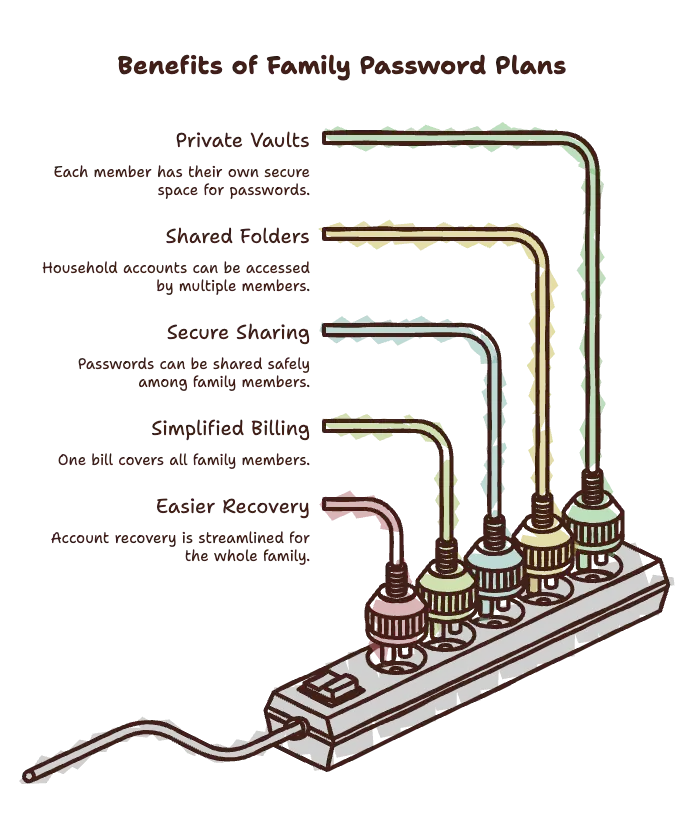
Many password managers offer family subscriptions that cover several users under a single plan.
These plans usually include:
- Separate private vaults for each family member.
- Shared folders for household accounts.
- Secure password sharing.
- Simplified billing.
- Easier account recovery.
If multiple people in your household need better password security, a family plan is often more cost-effective than purchasing individual subscriptions.
Business Plans for Teams
Organizations have different needs than individuals.
Business-focused password managers often provide:
- Centralized user management.
- Role-based permissions.
- Shared team vaults.
- Security audits.
- Activity logging.
- Compliance tools.
- Single Sign-On (SSO) integration.
These features help businesses reduce security risks while making it easier for employees to access the tools they need.
When a Free Password Manager Is Enough
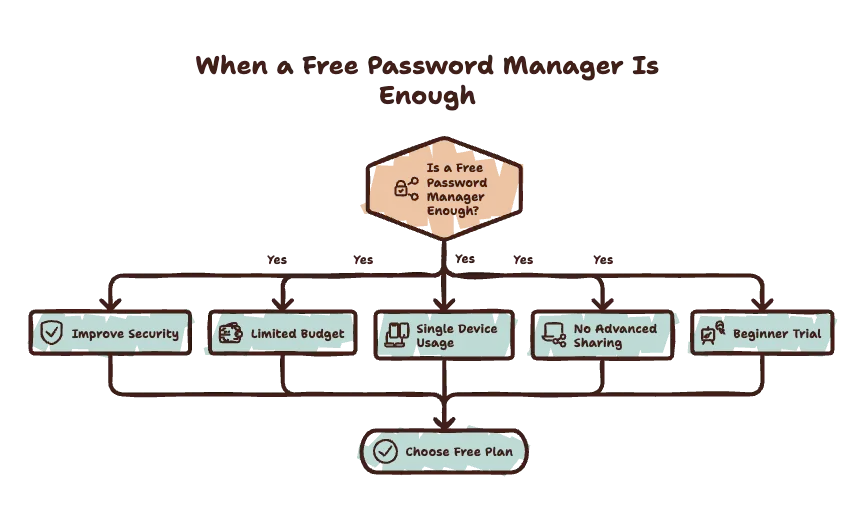
A free plan is often a great choice if you:
- Want to improve your password security.
- Have a limited budget.
- Mainly use one device.
- Don't need advanced sharing features.
- Are new to password managers and want to try one before paying.
For many users, a quality free password manager is a huge step up from relying on memory or reusing passwords.
When Paying Makes Sense
A premium subscription is worth considering if you:
- Use multiple computers and mobile devices.
- Want continuous breach monitoring.
- Share passwords with family members or coworkers.
- Store sensitive documents alongside passwords.
- Need emergency access options.
- Value premium support and advanced security reports.
The annual cost of a password manager is often small compared to the potential consequences of losing access to important accounts or becoming a victim of identity theft.
The Real Value of a Password Manager
It's easy to focus on subscription costs, but the real question is what you're protecting.
Your email, banking apps, investment accounts, social media profiles, cloud storage, work accounts, and personal documents are all valuable targets for cybercriminals. Recovering compromised accounts can take days or even weeks, and in some cases, financial losses or identity theft can have long-lasting effects.
Whether you choose a free or paid plan, using a reputable password manager is one of the smartest investments you can make in your online security. Start with the option that fits your needs today, and remember that you can always upgrade later as your requirements grow.
Common Myths About Password Managers
Despite becoming increasingly popular, password managers are still surrounded by misconceptions that discourage many people from using them. Some of these myths are based on outdated information, while others stem from misunderstandings about how password managers actually work.

Let's separate fact from fiction.
Myth #1: "If Someone Gets My Master Password, Everything Is Lost."
This is one of the most common concerns, and while the master password is incredibly important, it's not the only line of defense.
Most reputable password managers encourage or even require users to enable two-factor authentication (2FA). This means that even if someone somehow learns your master password, they'll usually need a second form of verification, such as a code from an authentication app or a hardware security key, before they can access your vault.
Additionally, many password managers monitor for suspicious login attempts, recognize unfamiliar devices, and provide account recovery options to help protect against unauthorized access.
The lesson isn't that password managers are unsafe, it's that your master password should be unique, long, and protected just like the key to your home.
Myth #2: "Password Managers Can Be Hacked Easily."
No online service is completely immune to security incidents, but reputable password managers are specifically designed with this reality in mind.
Rather than assuming their servers will never be attacked, they encrypt your data before it ever leaves your device. This means that even if attackers gained access to stored vaults, the information would remain encrypted and unreadable without your master password.
In other words, a password manager doesn't rely solely on preventing breaches, it also ensures that stolen data is extremely difficult to use.
Myth #3: "They're Too Complicated."
Years ago, password managers could feel intimidating, especially for people who weren't comfortable with technology.
Today, most password managers are designed with simplicity in mind.
Many can:
- Save passwords automatically as you log in.
- Generate secure passwords with one click.
- Autofill login forms instantly.
- Synchronize across all your devices.
- Guide you through setup step by step.
For many users, password managers actually make using the internet easier because they eliminate the frustration of remembering countless passwords.
Myth #4: "I Don't Have Enough Passwords to Need One."
It's easy to underestimate just how many online accounts you have.
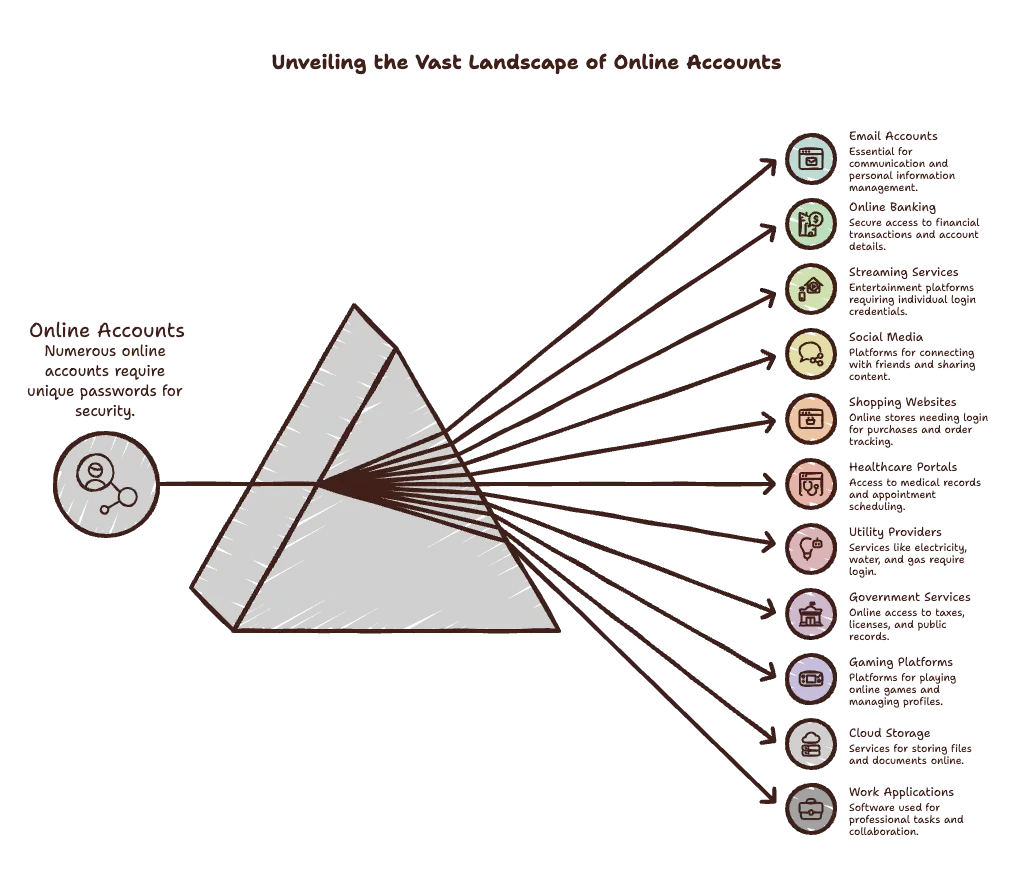
Think about everything that requires a login:
- Email accounts.
- Online banking.
- Streaming services.
- Social media.
- Shopping websites.
- Healthcare portals.
- Utility providers.
- Government services.
- Gaming platforms.
- Cloud storage.
- Work applications.
Even people who consider themselves light internet users often have dozens of accounts.
Protecting all of them with unique passwords becomes nearly impossible without a password manager.
Myth #5: "Writing Passwords Down Is Just as Safe."
Writing passwords on paper may seem harmless, especially if you keep the notebook at home.
However, handwritten password lists come with several drawbacks:
- They can't generate strong passwords.
- They're difficult to update regularly.
- They can't alert you to compromised passwords.
- They provide no protection against phishing attacks.
- They aren't available when you're away from home.
- They can be lost, damaged, or stolen.
While a carefully stored paper backup for your master password or recovery information can be useful, relying on handwritten lists for everyday password management isn't practical for most people.
Myth #6: "I Trust My Memory More Than Software."
Many people believe they can remember all of their passwords without assistance.
The problem is that human memory naturally encourages shortcuts. To make passwords easier to recall, people often:
- Reuse passwords.
- Choose familiar words or phrases.
- Make only small variations between accounts.
- Create passwords that follow predictable patterns.
These habits make passwords much easier for attackers to guess or exploit.
A password manager removes the need to rely on memory while allowing every account to have a completely unique, randomly generated password.
Myth #7: "Password Managers Are Only for Tech Experts."
Perhaps the biggest misconception is that password managers are tools meant only for cybersecurity professionals or IT departments.
In reality, they're designed for everyone.
Whether you're a student, retiree, freelancer, parent, business owner, or someone who simply shops online and uses social media, a password manager can help protect your personal information with very little effort.
You don't need to understand encryption algorithms or advanced cybersecurity concepts. Once it's set up, a password manager quietly works in the background, making secure online habits almost effortless.
The Truth About Password Managers
Password managers aren't perfect, but they are far safer than relying on reused passwords, weak passwords, or memory alone.
The biggest security risks today usually come from poor password habits, not from using a reputable password manager.
By understanding the facts instead of the myths, you can make an informed decision about protecting your online accounts. In most cases, using a trusted password manager dramatically reduces your risk of account compromise while making your digital life simpler at the same time.
How to Start Using a Password Manager
Getting started with a password manager is much easier than most people expect. While moving all of your passwords into one secure place might seem like a big task, most modern password managers guide you through the process step by step.

In less than an hour, you can dramatically improve the security of your online accounts and eliminate the stress of remembering dozens of passwords.
Follow these steps to get started.
Step 1: Choose a Trusted Password Manager
Your first decision is selecting the password manager that best fits your needs.
If you're unsure where to begin:
- 1Password is an excellent all-around premium choice.
- Bitwarden offers one of the best free plans available.
- NordPass is ideal for beginners.
- Dashlane includes advanced security features.
- Keeper works well for families and businesses.
- Proton Pass is a strong option for privacy-focused users.
Take a few minutes to compare pricing, supported devices, and available features before creating your account.
Step 2: Create a Strong Master Password
Your master password protects everything inside your password vault, so it's the most important password you'll ever create.
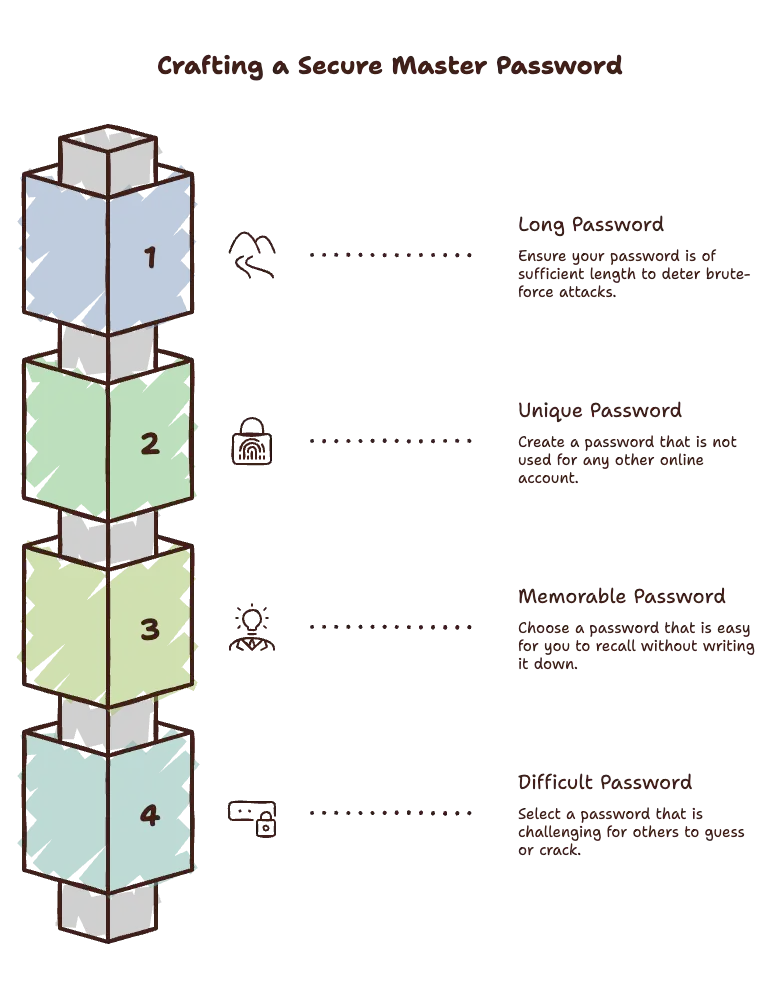
A good master password should be:
- Long rather than short.
- Unique and never reused elsewhere.
- Easy for you to remember.
- Difficult for others to guess.
Many security experts recommend using a passphrase made up of several unrelated words instead of a short, complicated password.
Avoid using:
- Birthdays.
- Family names.
- Pet names.
- Favorite sports teams.
- Common phrases.
- Passwords you've used before.
Because most password managers use zero-knowledge encryption, the provider cannot recover your master password if you forget it.
Step 3: Enable Two-Factor Authentication
As soon as your account is created, turn on two-factor authentication (2FA).
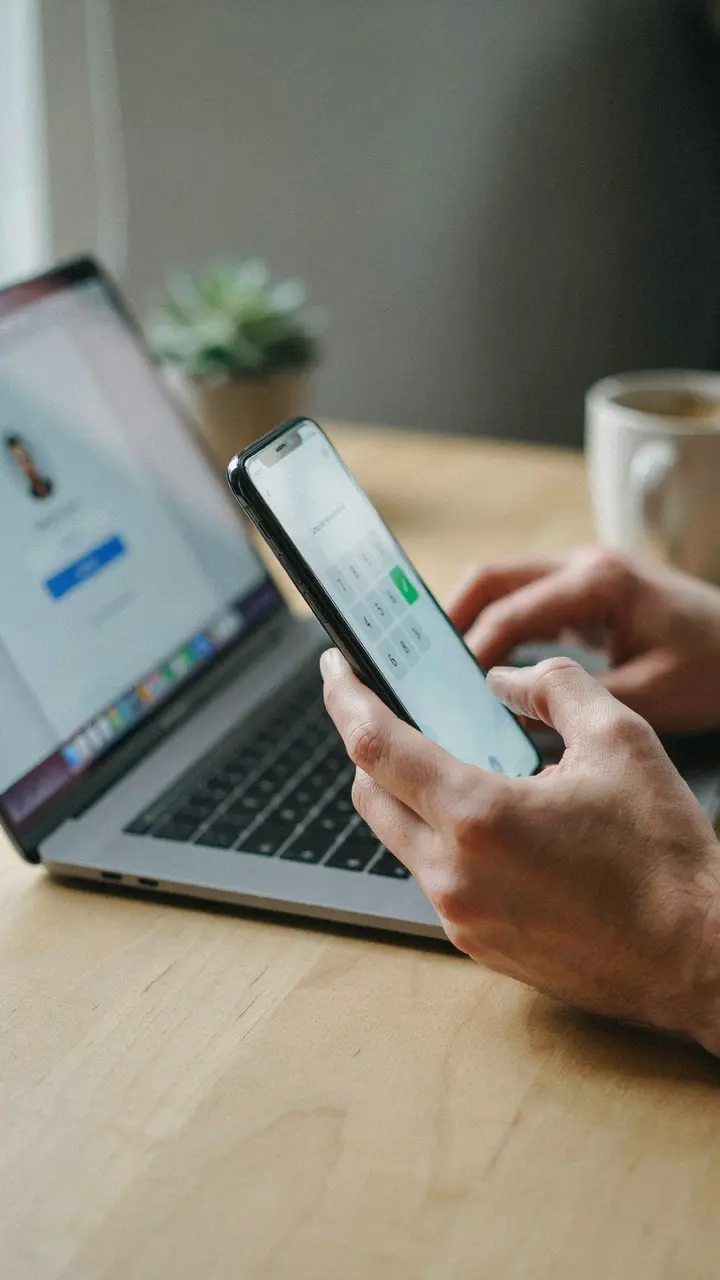
This extra layer of security requires a second verification method whenever someone attempts to log in from a new device.
Popular options include:
- Authentication apps.
- Hardware security keys.
- Biometric authentication.
- Backup recovery codes.
Enabling 2FA significantly reduces the likelihood of unauthorized access to your password vault.
Step 4: Import Your Existing Passwords
Most password managers make it easy to import passwords you've already saved in your browser or another password manager.
Many support importing from:
- Google Chrome.
- Microsoft Edge.
- Safari.
- Mozilla Firefox.
- Other password managers.
This saves hours of manually entering every account.
Once imported, take some time to review your vault for duplicate, weak, or outdated passwords.
Step 5: Replace Weak and Reused Passwords
This is where your security improves dramatically.
Use your password manager's security report to identify passwords that are:
- Weak.
- Reused across multiple websites.
- Too old.
- Found in known data breaches.
Visit your most important accounts first, such as your email, banking, cloud storage, and social media, and replace those passwords with long, randomly generated ones.
Over time, work your way through the rest of your accounts.
Step 6: Install Browser Extensions and Mobile Apps
To get the most from your password manager, install it on every device you regularly use.
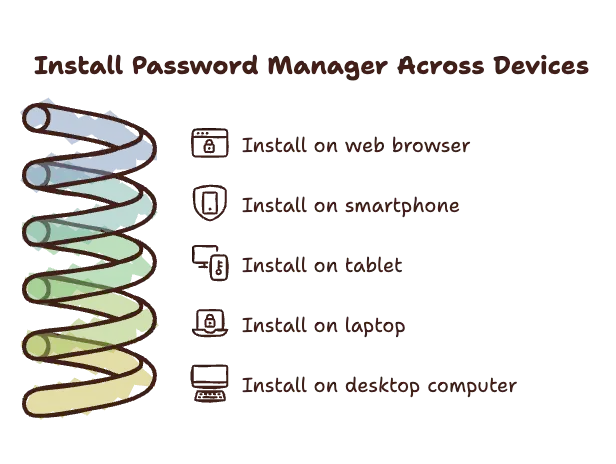
This usually includes:
- Your primary web browser.
- Smartphone.
- Tablet.
- Laptop.
- Desktop computer.
With synchronization enabled, your passwords will be available securely wherever you sign in.
Step 7: Let the Password Manager Do the Work
After setup, your password manager becomes part of your normal browsing experience.
When creating a new account, it can automatically generate a strong password and save it.
When returning to a website later, it can automatically fill in your login credentials.
Over time, you'll find yourself typing passwords less and relying more on secure, randomly generated credentials.
Step 8: Review Your Password Vault Regularly
A password manager isn't something you configure once and forget forever.
Every few months, take a few minutes to:
- Check your password health report.
- Update compromised passwords.
- Remove accounts you no longer use.
- Review shared passwords.
- Confirm your recovery information is still accurate.
These quick reviews help ensure your password vault remains organized and secure.
Start Small if You Need To
If moving every account at once feels overwhelming, don't worry.
Start with your most important accounts:
- Banking
- Investment accounts
- Cloud storage
- Social media
Once those are secured, gradually update the rest whenever you log in.
Building Better Security Habits
Using a password manager isn't just about storing passwords, it's about creating safer habits that become second nature.
Instead of trying to remember dozens of credentials or relying on the same password everywhere, you'll have unique, strong passwords protecting every account with very little extra effort.
The hardest part is taking the first step. Once your password manager is set up, you'll likely wonder how you ever managed your online accounts without one.
Password Manager Best Practices
Installing a password manager is one of the smartest steps you can take to improve your online security, but simply installing one isn't enough. To get the maximum benefit, it's important to use it correctly and build good security habits around it.
Fortunately, these best practices are simple to follow and can dramatically reduce your risk of becoming a victim of cybercrime.
Never Share Your Master Password
Your master password is the key to your entire password vault. Unlike the passwords for individual websites, this one should never be shared with anyone.
Treat it the same way you would treat the PIN for your bank card or the keys to your home.
To keep it secure:
- Make it long and unique.
- Don't reuse it on any other website.
- Avoid writing it in unsecured notes or documents.
- Never send it through email or messaging apps.
- Be cautious of anyone asking you for it, even if they claim to be from customer support.
A legitimate password manager company will never ask for your master password.
Enable Two-Factor Authentication (2FA)
If your password manager supports two-factor authentication, and most reputable ones do, you should enable it immediately.
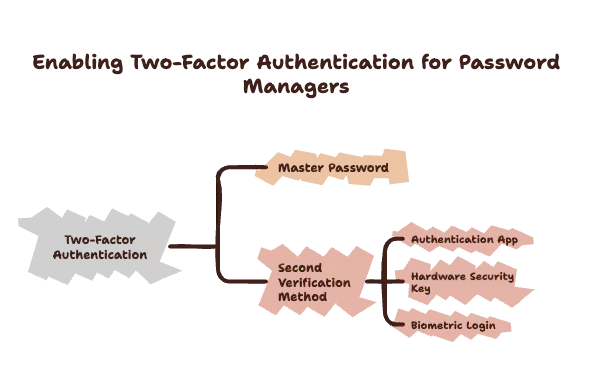
With 2FA turned on, accessing your password vault requires:
- Your master password.
- A second verification method, such as:
- An authentication app
- A hardware security key
- A biometric login (where supported)
This extra step significantly reduces the chances of someone gaining access to your vault, even if your master password is somehow compromised.
Regularly Audit Your Password Vault
Over time, it's easy to accumulate old accounts, duplicate logins, or passwords that are no longer secure.
Set aside a few minutes every few months to review your vault and:
- Delete accounts you no longer use.
- Replace weak passwords.
- Update passwords that have appeared in known data breaches.
- Remove duplicate entries.
- Check that important accounts have unique passwords.
Most password managers include built-in security reports that make this process quick and easy.
Use Passkeys Whenever They're Available
Many websites are beginning to support passkeys, a newer authentication technology designed to replace traditional passwords.
Passkeys offer several advantages:
- They can't be guessed like passwords.
- They're resistant to phishing attacks.
- They provide faster sign-ins.
- They remove the need to remember another password.
If your password manager supports passkeys, consider using them whenever compatible websites offer the option.
Update Compromised Passwords Immediately
If your password manager alerts you that one of your passwords has been exposed in a data breach, don't ignore the notification.
Instead:
- Sign in to the affected account.
- Generate a brand-new password using your password manager.
- Save the new password immediately.
- Enable two-factor authentication if it isn't already active.
Responding quickly helps prevent attackers from using stolen credentials against your accounts.
Secure Your Recovery Information
Because many password managers use zero-knowledge encryption, recovering access to your vault can be difficult if you forget your master password.
Take time to securely store:
- Recovery codes.
- Emergency recovery keys.
- Trusted emergency contact information.
- Backup authentication methods.
Keep this information somewhere safe, such as a secure physical location or another trusted recovery method recommended by your password manager.
Keep Your Software Up to Date
Password managers receive regular updates that improve security, fix bugs, and introduce new features.
Whenever possible:
- Enable automatic updates.
- Keep your browser extensions current.
- Update your mobile apps promptly.
- Install operating system security updates.
Using outdated software can leave unnecessary security gaps.
Be Alert for Phishing Attempts
Although password managers can help protect against phishing, they can't stop every scam.
Always double-check:
- Website addresses before logging in.
- Emails requesting password changes.
- Unexpected login prompts.
- Messages claiming your account has been locked.
If your password manager doesn't recognize a website where it normally autofills your credentials, treat that as a warning sign and verify that you're on the correct site before entering any information manually.
Avoid Storing Everything in One Place
While password managers are excellent for storing passwords and many types of sensitive information, it's wise to think carefully about what you save.
For extremely sensitive information, such as cryptocurrency wallet recovery phrases or highly confidential documents, you may prefer an additional layer of protection, such as offline storage or a hardware security solution, depending on your personal security needs.
Using multiple layers of security can reduce the impact of a single point of failure.
Make Security a Habit, Not a One-Time Task
Cybersecurity isn't something you set up once and forget.
New accounts, new devices, and new online threats appear all the time. By using your password manager consistently, reviewing your vault regularly, and following good security practices, you'll stay far better protected than someone relying on memory or reused passwords.
Final Thoughts
A password manager is one of the most powerful tools for protecting your online identity, but its effectiveness depends on how you use it. Following these best practices will help you get the most out of your password manager while reducing the chances of data breaches, account takeovers, and identity theft.
The goal isn't perfection, it's building simple, repeatable habits that make staying secure almost effortless.
Frequently Asked Questions
Are password managers really safe?
Yes. Reputable password managers are considered one of the safest ways to store and manage your login credentials. They use strong encryption to protect your data and often follow a zero-knowledge architecture, meaning the provider cannot view your stored passwords. When combined with a strong master password and two-factor authentication (2FA), a password manager offers significantly better protection than reusing passwords or storing them in unsecured documents.
Can password managers be hacked?
Like any software, no password manager can claim to be 100% immune from attacks. However, reputable password managers are designed so that your password vault is encrypted before it leaves your device. Even if a provider's servers were compromised, attackers would typically only gain access to encrypted data, which is extremely difficult to decrypt without your master password.
What happens if I forget my master password?
This depends on the password manager you use. Many providers cannot recover your master password because they don't store it. Some offer recovery methods, emergency kits, or trusted contact options that can help you regain access. Before relying on a password manager, review its recovery process and store any recovery information in a secure location.
Can I use a password manager on my phone?
Absolutely. Most leading password managers offer apps for both Android and iPhone, allowing you to securely access your passwords wherever you are. They also support biometric authentication, such as fingerprint or facial recognition, making it quick and convenient to unlock your password vault.
Are free password managers good enough?
For many people, yes. A reputable free password manager provides a major improvement over weak or reused passwords by generating strong credentials and storing them securely. However, paid plans often include additional features such as dark web monitoring, advanced password health reports, secure password sharing, emergency access, and multi-device syncing, which may be worthwhile depending on your needs.
Can password managers store passkeys?
Yes. Many modern password managers now support passkeys, allowing you to securely store and manage passwordless login credentials alongside your traditional passwords. As more websites adopt passkeys, choosing a password manager with this feature can help future-proof your online security.
Which password manager is best for families?
Many password managers offer family plans that include separate private vaults for each family member while allowing secure sharing of common accounts such as streaming services or household subscriptions. Solutions like 1Password, Bitwarden, Keeper, Dashlane, and NordPass all provide family-friendly features, so the best choice depends on your preferred interface, budget, and security requirements.
Which password manager is best for businesses?
Businesses typically benefit from password managers that include centralized administration, secure password sharing, role-based permissions, activity logs, and compliance tools. Keeper, 1Password, Bitwarden, and Dashlane all offer business-focused plans designed to help organizations manage employee access while improving overall cybersecurity.
Should I trust my browser's built-in password manager?
Browser password managers are convenient and provide better protection than using weak or reused passwords. However, dedicated password managers generally offer stronger security features, broader cross-platform support, secure sharing, password health reports, breach monitoring, and encrypted storage for additional sensitive information. If security is a priority, a dedicated password manager is usually the better choice.
How often should I change my passwords?
You don't necessarily need to change every password on a regular schedule. Instead, focus on using a unique, strong password for every account and update passwords immediately if they are exposed in a data breach, suspected of being compromised, or reused across multiple websites. Your password manager can help identify which passwords need attention.
Conclusion
Managing passwords has become one of the biggest challenges of modern digital life. With dozens, or even hundreds, of online accounts to keep track of, relying on memory or reusing the same password across multiple websites is no longer a safe option. It only takes one compromised account for cybercriminals to begin targeting the rest of your digital identity.

That's where a password manager makes a real difference.
By generating strong, unique passwords for every account, securely storing your login credentials, and automatically filling them in when you need them, a password manager removes much of the frustration from staying secure online. Instead of making cybersecurity more complicated, it simplifies it.
Whether you choose a free solution like Bitwarden, a premium option like 1Password, or another trusted provider that fits your needs, the most important step is simply getting started. The sooner you replace reused and weak passwords with strong, unique ones, the better protected you'll be against data breaches, credential stuffing attacks, phishing scams, and account takeovers.
Remember, a password manager isn't just a tool for tech enthusiasts or cybersecurity professionals. It's for anyone who uses email, shops online, streams movies, manages finances, works remotely, or stores personal information on the internet, which is to say, almost everyone.
Online threats continue to evolve, but so do the tools designed to protect you. A password manager is one of the easiest and most effective investments you can make in your digital security, often taking less than an hour to set up while providing long-term peace of mind.
If you've been putting off using a password manager, there's no better time to start. Choose a trusted provider, create a strong master password, enable two-factor authentication, and begin updating your most important accounts. It's a small change today that can save you from significant stress, financial loss, and identity theft in the future.
In the end, the best password manager isn't necessarily the one with the longest list of features, it's the one you'll use consistently. Build good password habits now, and you'll create a stronger foundation for every online account you own.

Leave a comment
Your email address will not be published. Required fields are marked *